4 min read
Your partner can see the budget now, and two other things we shipped this spring

Article by
Carl Thompson · CEO and Co-founder of SortMe

For household finances to work, both partners need to be on the same page. That has always been hard to do when one person runs the spreadsheet and the other can't read the format, so the decisions end up being made by whoever holds the spreadsheet.
With this update, both of you can log in to the same SortMe and see the same information, so decisions about money can be made together. That change is the first of three we shipped over the last two months, and all three are already in your SortMe at no extra cost.
You and up to four others can now share one SortMe, each with their own login
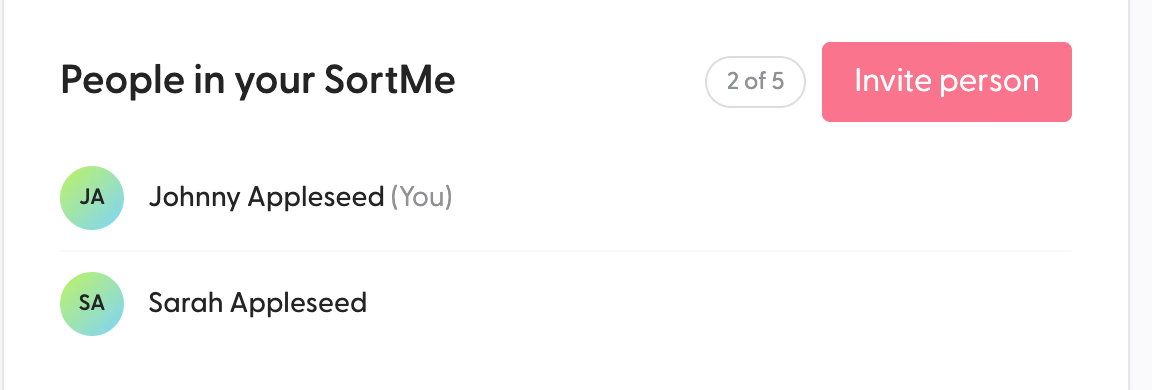
You can invite your partner, and up to three other people, into your SortMe from Settings. Each person gets their own email and password and their own profile photo, and sees the same accounts, budget, goals and Spend Overview that you do. Nobody is handing over a password, and nobody is reading the budget off someone else's screen.
If the person you invite already has a SortMe of their own, they keep it. They switch between theirs and yours from the account menu in the top right, without logging out of either.
Once both of you are looking at the same Spend Overview, the conversation stops being one person explaining the numbers to the other and becomes the two of you deciding what to do about them.
If you run the household money on your own and prefer it that way, there is nothing here you need to change. The other two features work the same whether one person or five are logged in.
To set it up: go to Settings, then People in your SortMe, then Invite person. The person you invite gets an email with a link that works for 14 days. The full walkthrough, including how your partner connects their own bank accounts once they're in, is in Inviting your partner to your SortMe. One note from that article worth repeating: if you share a joint account, only one of you should connect it, or every transaction shows up twice.
The filter on Transactions and Spend Overview now remembers what you asked for
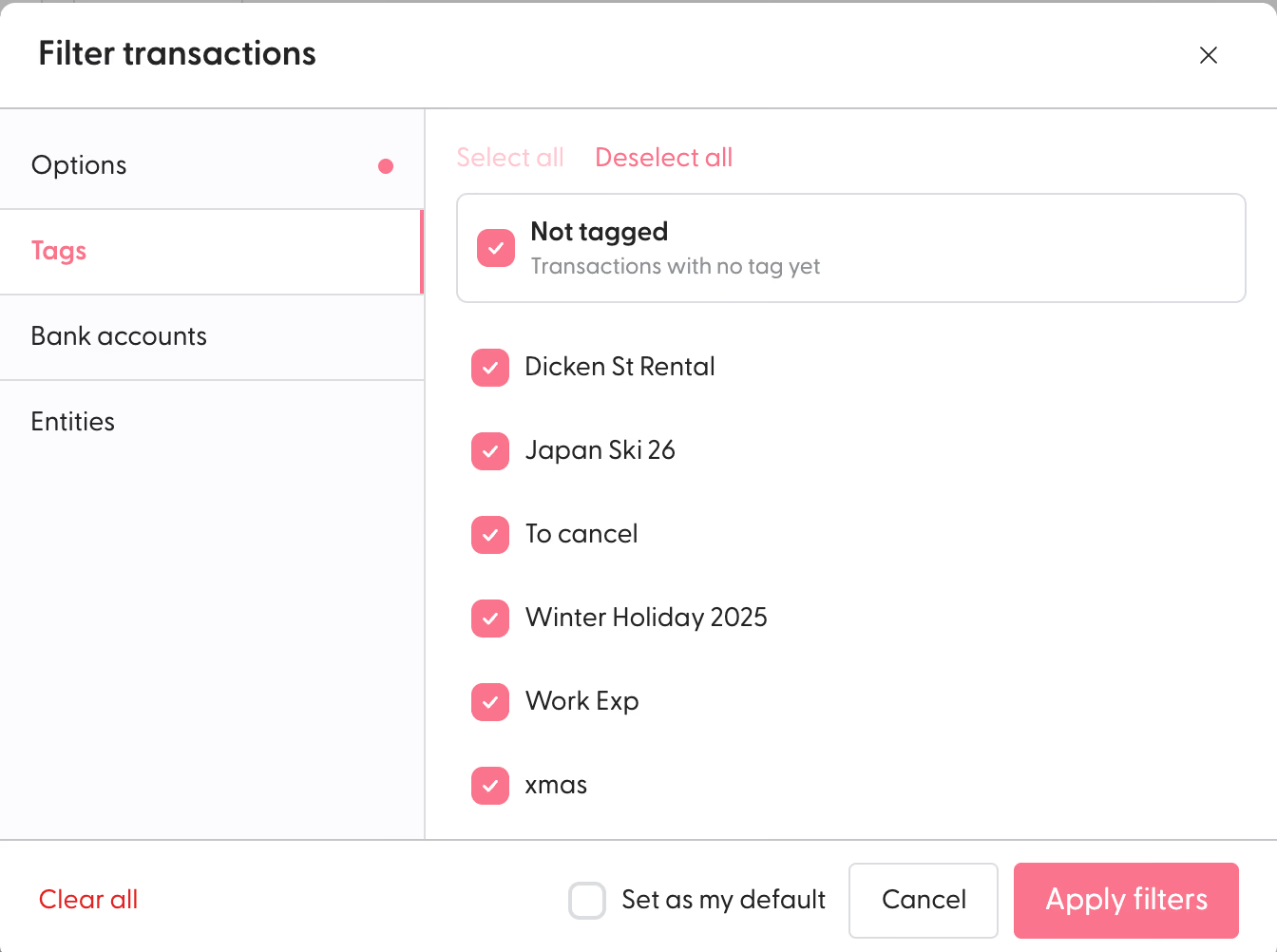
We rebuilt the filter from scratch. You can pick a date range, one or more tags (including "not tagged", which is the fastest way to find the transactions you haven't dealt with), one or more bank accounts and, on Pro, which entity you're looking at. Ignored transactions and transfers between your own accounts can be hidden with one tap each.
The change that matters is the "Set as my default" button. Tap it and that page opens the same way every time you come back. If you normally look at one account with transfers hidden and the date set to the current pay cycle, that view is now one tap instead of six.
Tags are the part most people underuse. A tag like "Xmas26" on every Christmas purchase, across every account and every category, gives you the real total in January without adding anything up. How to tag, ignore and manage transactions covers tagging and ignoring, and Understanding your Spend Overview covers the page the filter sits on.
Your SortMe data can now flow into the tools you already use
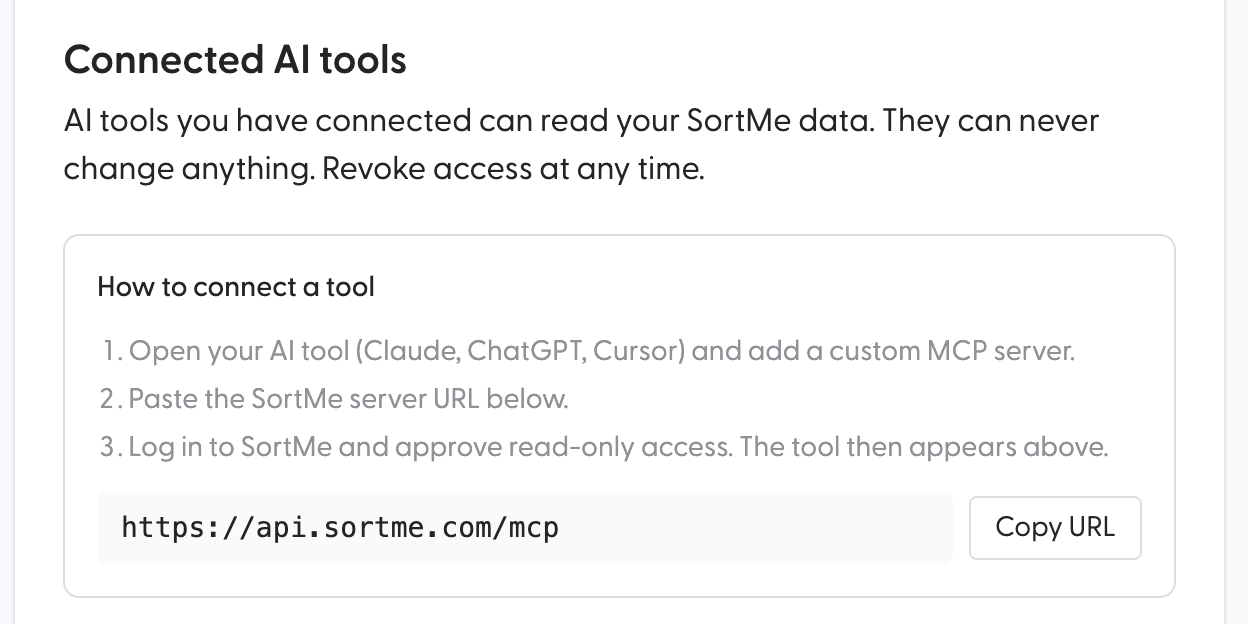
If you use Claude, ChatGPT or Cursor, you can now give it read-only access to your SortMe. For questions about your money, SortMe AI inside the app is still the place to ask, because it already has your full picture. This connection is for the work that happens outside SortMe.
Once connected, your AI tool can pull your transactions, budget and account balances straight into whatever you're working on. You can ask it to build a spreadsheet of this year's spending by category, model what your cashflow looks like if the mortgage rate changes at the next refix, or put together a summary of the household accounts for your accountant or adviser, all from your live SortMe data instead of a CSV export you have to clean up first.
The connection is read-only, so the tool can see your transactions, accounts and budget and cannot change a category, move a goal or connect a bank. You approve the connection inside SortMe, and you can switch it off from Settings at any time, after which the tool has no access at all.
To connect: go to Settings, then Connected AI tools, then How to connect a tool. The read-only principle behind this is the same one behind every bank connection in SortMe, and How secure is SortMe? explains it.
What to do first
If there is a second adult in your household who doesn't currently look at SortMe, invite them this week. Everything else on this list is better with two people looking at it, and the invite takes about a minute. If you're the only adult, set the filter you use most as your default so the page is ready the moment you open it.
If something doesn't work the way this article says it should, reply to the update email or write to support@sortme.com. I read the replies myself.